Our smartphones have become an important part of everyday life. We use them for communication, shopping, banking, entertainment, education, work, and many other activities. To provide different features, mobile apps often ask for access to things like your camera, microphone, location, contacts, photos, and files. These requests are called app permissions.
App permissions are useful, but giving every app access to everything on your phone can create privacy and security problems. The good news is that managing app permissions is not difficult. With a few simple steps, you can control what apps can access and keep your personal information more private.
In this article, we will explain how to manage app permissions on your phone, why app permissions matter, which permissions you should be careful about, and how to make your smartphone safer.
What Are App Permissions?
App permissions are settings that allow an application to access certain features or information on your smartphone. For example, a camera app needs permission to use your camera. A navigation app may need access to your location. A messaging app may ask for access to your contacts and photos.
When you install an app, it may ask you to allow different permissions. You do not always have to accept every request. You can decide which permissions are necessary and which ones you do not want to provide.
Understanding app permissions is an important part of smartphone privacy. It gives you more control over your personal information and helps reduce unnecessary access.
Why App Permissions Matter
Many apps need permissions to work properly, but some permissions are more sensitive than others. Your location, microphone, camera, contacts, photos, and files can contain private information.
For example, a weather app may need your location to show local weather. However, you may not want it to access your contacts or microphone. Giving unnecessary permissions can expose more information than an app actually needs.
Managing app permissions can also help you notice suspicious behavior. If a simple calculator app wants access to your microphone, contacts, and location, you should stop and think about why it needs those permissions.
Good permission management is therefore a simple way to improve mobile security and protect your privacy.
Check App Permissions Regularly
One of the easiest ways to manage app permissions is to check them regularly. You do not need to check every permission every day. Checking your important apps once in a while can make a big difference.
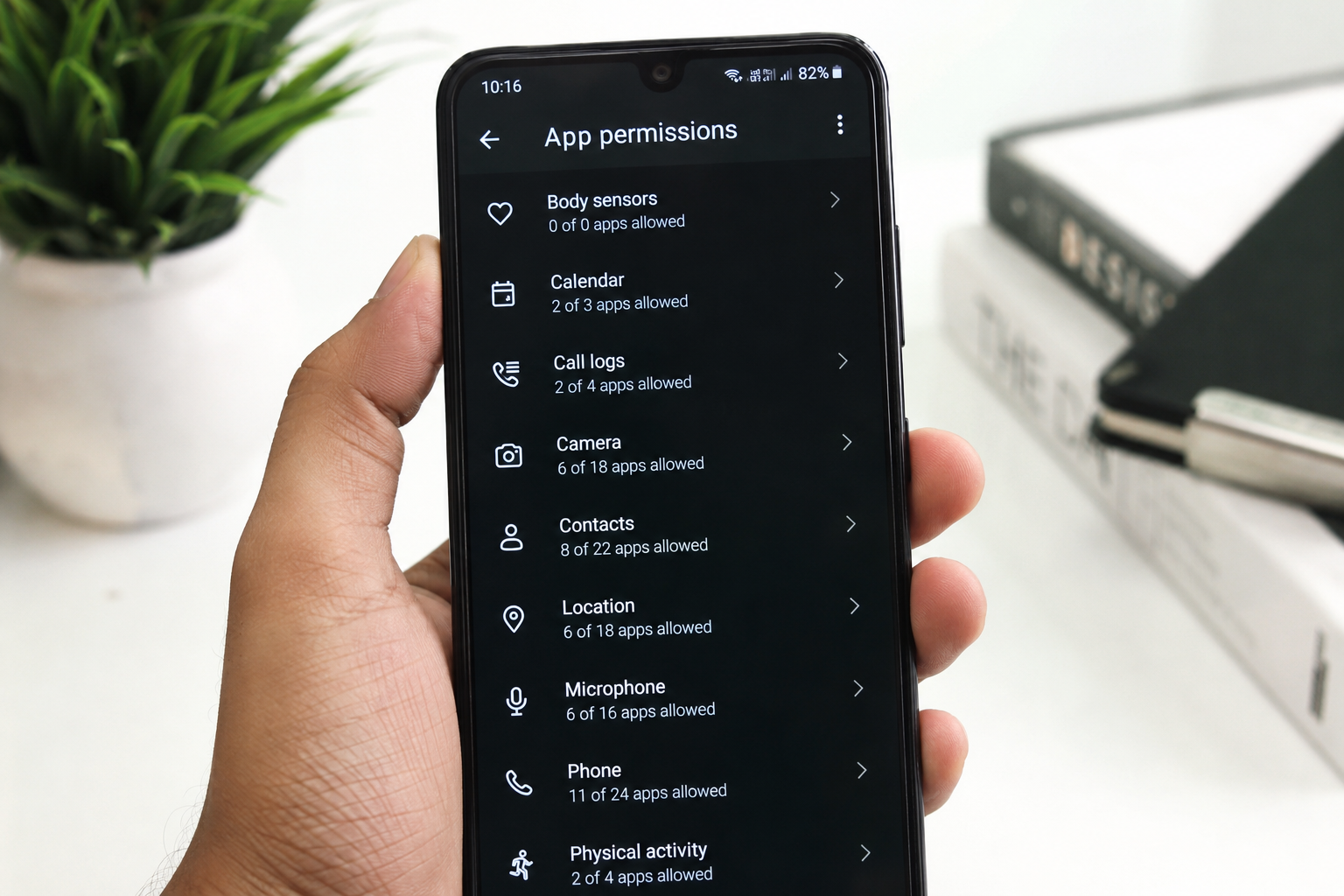
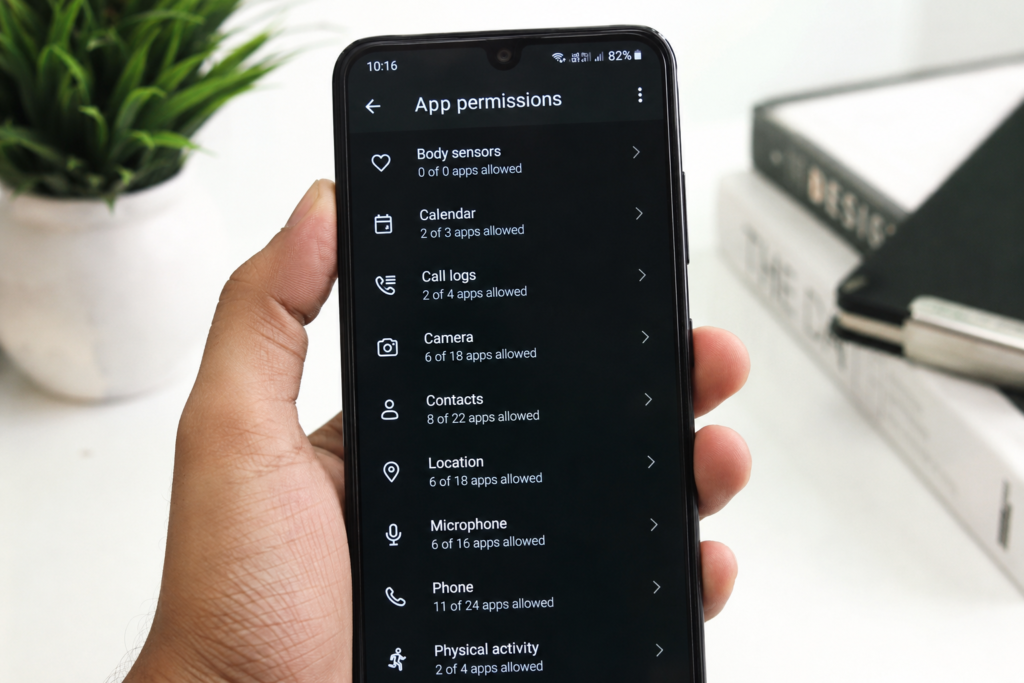
On most Android phones, you can open Settings and then go to Apps or Privacy. From there, you can select an app and view its permissions. The exact names can be different depending on your phone brand and Android version.
On an iPhone, open Settings and scroll down to the app you want to check. You can also use the Privacy and Security section to see which apps have access to different types of information.
Look at the permissions and ask yourself whether each one makes sense. If an app does not need a permission for its main purpose, consider turning it off.
Be Careful With Location Permission
Location access is one of the most important app permissions to manage. Many apps can use your location to provide useful services, but not every app needs to know where you are.
For example, a maps app needs location access to give you directions. A food delivery app may also need your location when you place an order. However, a basic note taking app usually does not need constant access to your location.
When possible, choose an option that allows location access only while using the app. Some phones also provide an option to allow approximate location instead of your exact location.
Limiting location access can help improve privacy and may also reduce battery usage.
Manage Camera and Microphone Access
Your camera and microphone are sensitive parts of your smartphone. Apps with permission to use them may be able to take photos, record video, or use your microphone when the system allows it.
Social media, video calling, and camera apps may have a valid reason to use these features. However, other apps may not need them.
Review which apps can access your camera and microphone. If you find an app that does not need either permission, consider turning access off.
Modern smartphones may also show indicators when the camera or microphone is being used. Pay attention to these indicators and investigate anything that seems unusual.
Control Contacts Permission
Contacts contain information about your friends, family, coworkers, and other people you know. Not every application needs access to this information.
Messaging and communication apps may need contacts to help you find people you know. But a simple game or photo editing app normally has no reason to access your contact list.
If you have already given contact access to many apps, review the list and remove access where it is not necessary. This is a simple step that can improve your personal privacy.
Manage Photos and Files
Photos and files can contain personal memories, documents, screenshots, work information, and other private data. You should be careful when an app asks for access to them.
If your phone provides an option to select specific photos, use it when possible instead of giving an app access to your entire photo library.
For example, if you are uploading one photo to an app, there may be no reason to give that app permanent access to every photo on your phone.
Keeping control over photos and files can reduce the amount of personal information available to applications.
Do Not Automatically Allow Every Permission
Many people tap Allow quickly when an app asks for permission. This is understandable because repeatedly reading permission messages can feel annoying. However, automatically allowing every request is not a good privacy habit.
Before choosing Allow, take a second to understand what the app is asking for. Think about whether the permission is related to the main purpose of the app.
If the answer is no, choose Don’t Allow or another limited option when available. You can usually change the decision later through your phone settings.
Remove Permissions From Apps You Rarely Use
Some applications stay installed on a phone for months even though the user rarely opens them. If an app is no longer important, it may still have permissions that you gave it in the past.
Review old and rarely used apps and check their permissions. Some smartphones also offer automatic permission management for apps that have not been used for a long time.
If you do not need an app anymore, the best option may be to uninstall it completely. Removing unused apps can improve phone storage, reduce clutter, and limit unnecessary access to your information.
Understand Special Permissions
Some apps may request special permissions that can provide deeper access to your smartphone. These may include access to notifications, displaying content over other apps, installing unknown applications, accessibility features, or changing certain system settings.
You should be especially careful with these permissions. Only provide them when you understand why the app needs them and when you trust the application.
If an unfamiliar app requests powerful access without a clear reason, it is better to deny the request and investigate the app before continuing to use it.
Keep Your Phone Updated
Managing app permissions is important, but it should be combined with other smartphone security habits. Keep your phone’s operating system and apps updated whenever possible.
Updates can include security improvements, bug fixes, and privacy changes. Older software may contain security weaknesses that attackers could use.
You should also download applications from trusted app stores and avoid installing unknown applications from random websites. Before installing an app, check its developer information, reviews, download history, and requested permissions.
Review Permissions After App Updates
An app can change over time. New versions may introduce new features that require additional permissions. For this reason, it is useful to review permissions after major app updates.
If an app suddenly requests access to your microphone, location, contacts, or files, check why the new permission is needed. You do not have to accept a new request simply because you have trusted the app in the past.
Keeping an eye on permission changes gives you better control over your smartphone privacy.
Use Privacy Settings on Your Phone
Both Android and iPhone devices provide privacy settings that make permission management easier. These settings can show which applications have access to sensitive features.
Take some time to explore the Privacy section of your phone. Look at location access, camera access, microphone access, contacts, photos, and other important categories.
You may be surprised to find that some older apps still have access to information you no longer want to share. Removing unnecessary permissions can make your phone more private without affecting important features.
What To Do If an App Seems Suspicious
If an app behaves strangely or requests unusual permissions, take action. First, deny permissions that do not appear necessary. Then check whether the app has a trusted developer and whether other users have reported problems.
If you still do not trust the application, uninstall it. You can also run your phone’s built in security checks if available.
Never ignore unusual permission requests simply because an app is free or popular. A trusted reputation is helpful, but you should still understand what an application is asking to access.
Final Thoughts
Managing app permissions on your phone is a simple habit that can make a big difference to your privacy and security. You do not need to become a technology expert to protect your personal information. Just take a little time to check what your apps can access.
Review location, camera, microphone, contacts, photos, and file permissions regularly. Remove access that an app does not need, uninstall applications you no longer use, and be careful with special permissions.
The most important rule is simple. Only give an app the access it actually needs.
By following these smartphone privacy tips, you can enjoy your favorite apps while keeping better control over your personal information. Good app permission management is one of the easiest ways to make your phone safer and more private.