Smartphones have become an important part of our daily life. We use them for calling, messaging, shopping, watching videos, taking photos, using social media, studying, and even managing work. However, many people use only the basic features of their phones and never explore the useful smartphone settings available on their devices.
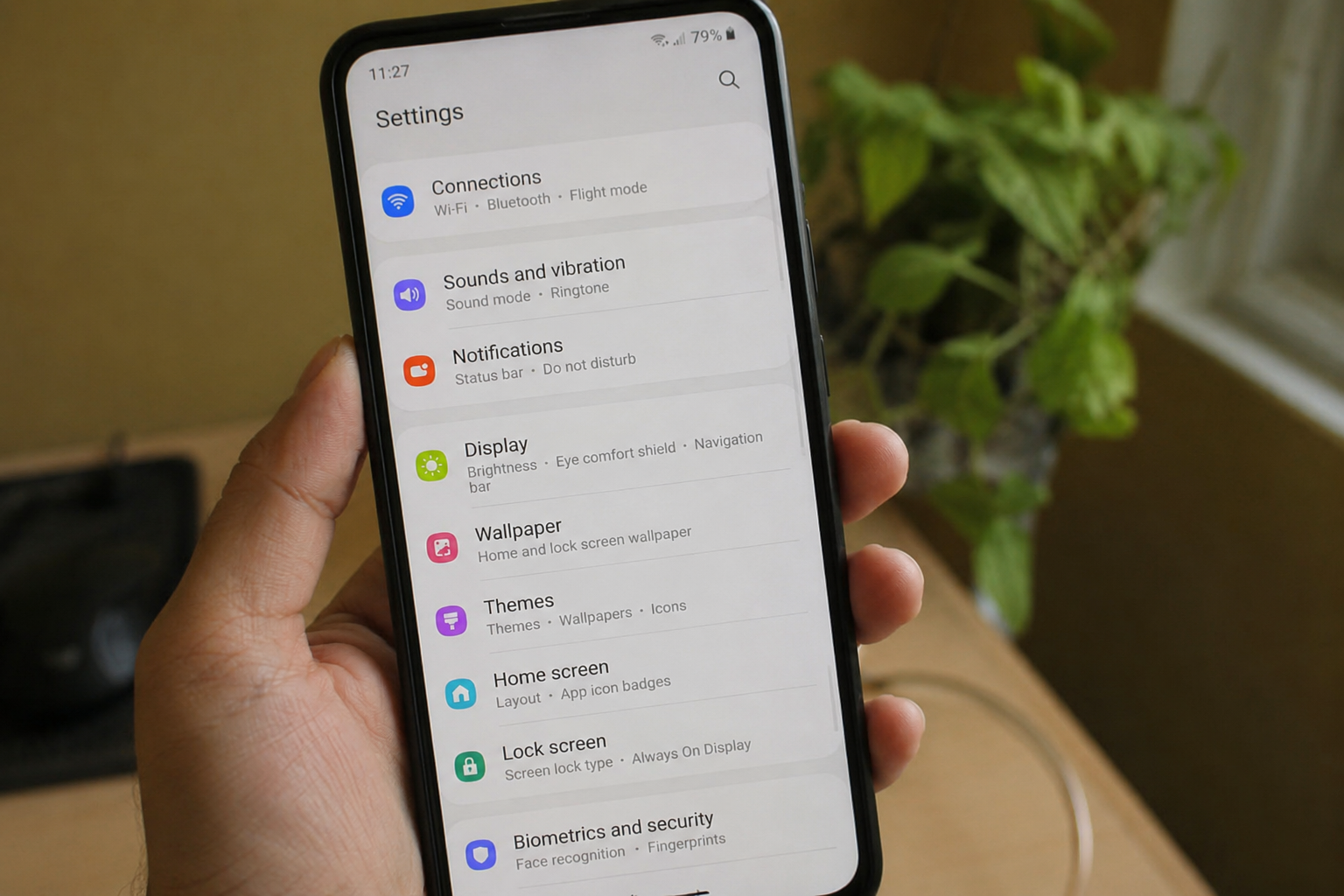
Changing a few smartphone settings can make your phone easier to use, safer, faster, and more comfortable. Whether you use an Android phone or an iPhone, there are several settings worth checking. In this guide, we will look at some of the most useful smartphone settings every user should know.
1. Check Your Privacy Settings
Privacy is one of the most important things to consider when using a smartphone. Many apps ask for permission to access your location, camera, microphone, contacts, photos, or other information.
Open the privacy section in your phone settings and check which apps have access to your personal information. You may find apps that have permissions they do not really need.
For example, a simple calculator app normally does not need access to your contacts or microphone. If an app does not need a permission, you can turn it off.
Regularly checking privacy settings can help you control your personal information and improve smartphone security.
2. Manage App Notifications
Notifications can quickly become annoying when every app sends alerts throughout the day. Too many notifications can also make it difficult to notice important messages.
Go to your notification settings and check which apps are allowed to send notifications. You can turn off notifications from apps that are not important.
You can also choose different notification sounds or allow important notifications while reducing unnecessary alerts. Managing notifications can make your phone feel much less distracting.
This is one of the simple smartphone settings that can improve your daily phone experience.
3. Turn On Find My Device
Losing a smartphone can be stressful because modern phones contain photos, contacts, messages, documents, and other personal information.
Android phones usually include a device finding feature, while iPhones have Find My. These features can help you locate a lost phone.
Make sure the feature is enabled before you lose your phone. You may also need location services and an internet connection for some features to work properly.
This setting can be extremely useful if your smartphone is lost or stolen.
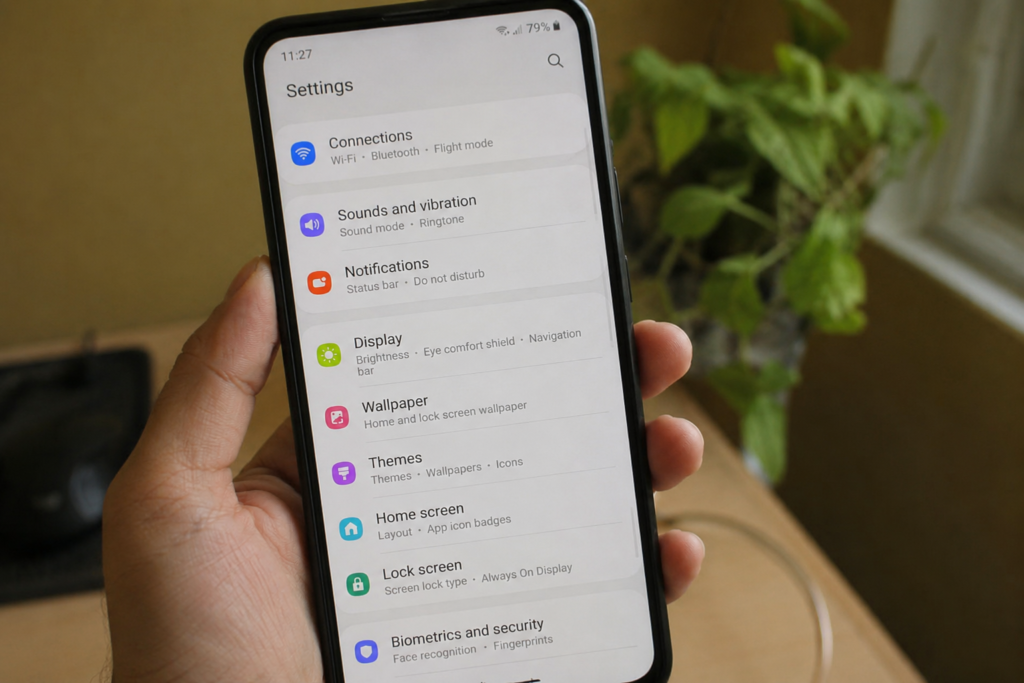
4. Use Screen Lock and Biometrics
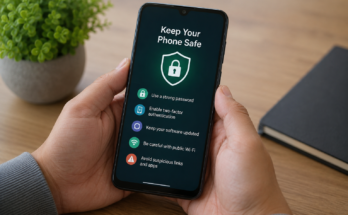
A strong screen lock is an important part of smartphone security. You should avoid using simple passwords or patterns that other people can easily guess.
Most modern smartphones support fingerprint recognition or face recognition. These options can make unlocking your phone quick while still providing an extra layer of protection.
You should also set your phone to lock automatically after a short period of inactivity. This prevents someone from easily accessing your phone if you leave it unattended.
A secure screen lock is one of the most basic smartphone security settings every user should have.
5. Turn On Automatic Updates
Software updates can improve phone performance, fix problems, and provide important security improvements. Many users ignore update notifications, but keeping your phone updated is a good habit.
Check the software update section in your smartphone settings and enable automatic updates if the option is available.
You should also keep your apps updated through the official app store. Updated apps often include security fixes and improvements.
Automatic updates can save you from checking for new software manually every time.
6. Manage Battery Settings
Battery life is important for every smartphone user. Your phone may have several battery settings that can help you understand and improve battery performance.
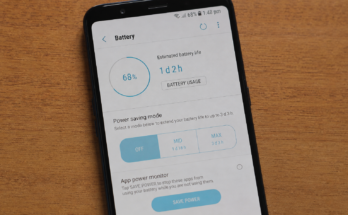
Open the battery section and check which apps are using the most power. You may discover that an app you rarely use is consuming a large amount of battery in the background.
Many smartphones also include a battery saver mode. You can use it when your battery level is low and you need your phone to last longer.
Reducing unnecessary background activity can help improve smartphone battery life.
7. Turn On Dark Mode
Dark mode changes the appearance of your phone by using darker colors instead of a bright background. Many people prefer dark mode because it feels more comfortable, especially at night.
You can usually find dark mode under the display settings. Some smartphones also allow you to schedule dark mode automatically during certain hours.
Dark mode can make your screen easier to look at in darker environments. On some phones with OLED or AMOLED displays, it may also help reduce power consumption in certain situations.
8. Adjust Screen Brightness
Screen brightness has a major effect on battery usage and viewing comfort. Keeping your screen at maximum brightness all the time is usually unnecessary.
You can enable automatic brightness if your phone supports it. This allows the phone to adjust brightness according to the surrounding light.
You can also manually lower the brightness when you are indoors or in a darker room. This can make the screen more comfortable and may help save battery.
9. Check Storage Settings
Running out of storage can become a problem when you have many photos, videos, apps, and downloaded files.
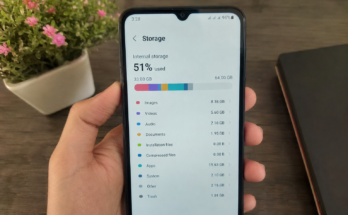
Open your storage settings to see what is taking up space on your phone. You may find large videos, duplicate photos, old downloads, or apps that you no longer use.
Deleting unnecessary files can free up storage space and make it easier to install updates or save new photos.
Some smartphones also provide storage management tools that automatically identify large or unnecessary files.
10. Review Location Settings
Location services are useful for navigation, weather apps, food delivery, ride sharing, and many other services. However, not every app needs continuous access to your location.
Open your location settings and review which apps can access your location. When possible, allow apps to use your location only while you are using them.
This can improve privacy and may also reduce unnecessary battery usage.
11. Enable Data Saver
Mobile data can disappear quickly when apps download videos, photos, and other content in the background.
Most smartphones include a data saver feature that can reduce background data usage. This can be especially useful if you have a limited mobile data package.
You can also check which apps are using the most mobile data. If an app is consuming more data than expected, you can limit its background activity.
Managing mobile data is a simple way to avoid unnecessary internet usage.
12. Set Up Emergency Information
Many smartphones allow users to add emergency information such as emergency contacts and important medical information.
This information can sometimes be accessed from the lock screen without unlocking the phone. It may help others contact someone you trust during an emergency.
Check your phone’s safety or emergency settings and add the information that you are comfortable sharing.
You should make sure the information remains updated if your emergency contact details change.
13. Use Focus or Do Not Disturb Mode
Smartphones can easily interrupt your work, study, sleep, or personal time. Focus mode and Do Not Disturb settings can help reduce these interruptions.
You can choose which people or apps are allowed to contact you while the mode is active. Some phones also allow you to create schedules.
For example, you can set Do Not Disturb to turn on automatically at night. This can reduce unnecessary notifications and help create a quieter environment.
14. Customize Keyboard Settings
The keyboard is something you use many times every day, so customizing it can make typing easier.
You can enable features such as spell checking, auto correction, predictive text, voice typing, and personal dictionary options.
If your keyboard keeps changing words incorrectly, review the auto correction settings. You can also add commonly used words to your personal dictionary.
Small keyboard changes can make texting and writing much faster.
15. Check App Permissions Regularly
Installing an app does not mean you should permanently give it access to everything on your phone.
Review app permissions from time to time. Check access to your camera, microphone, contacts, photos, files, and location.
If an app no longer needs a permission, remove it. This is particularly useful for older apps that you installed months or years ago.
Regular permission checks are an easy part of good smartphone security.
16. Enable Automatic Backup
Your smartphone may contain memories and important information that would be difficult to replace. Photos, contacts, messages, and documents can disappear if your phone is damaged or lost.
Use your phone’s backup settings to make sure important information is backed up. Depending on your device, you may be able to use a cloud backup service.
Automatic backup is better than waiting until something goes wrong. Check your backup settings occasionally to make sure the backup is actually working.
17. Customize Quick Settings
Most smartphones provide a quick settings panel that gives you fast access to common features such as Wi Fi, Bluetooth, mobile data, flashlight, screen recording, and airplane mode.
You can often customize this panel and place the settings you use most frequently near the front.
This saves time because you do not have to open the full settings menu every time you want to change something.
Conclusion
Your smartphone can do much more than making calls and running apps. The settings menu contains many useful features that can improve privacy, security, battery life, performance, and everyday convenience.
Start by checking important smartphone settings such as privacy permissions, notifications, screen lock, automatic updates, battery options, storage, location access, and backups. You do not need to change everything at once.
Take a few minutes to explore your phone and adjust the settings according to your needs. Once you understand these useful smartphone settings, your device can become easier, safer, and more comfortable to use every day.